
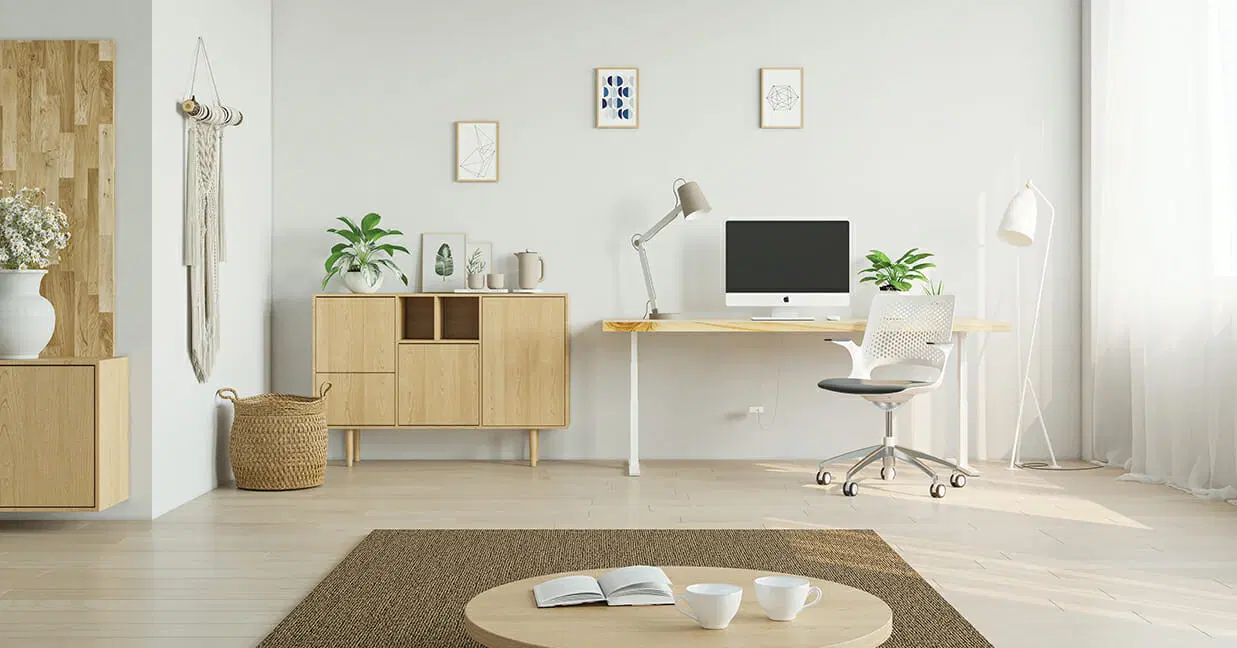

How to Set Up an Ergonomic Home Office in a Small Room
Working from home can make everyday life more flexible, but creating a comfortable workspace becomes challenging when your office is a small bedroom, a corner of the living room, or even a narrow area beside a wardrobe. There may be limited room for a full-sized desk, an office chair, storage, and computer equipment. When space is tight, people often end up working from the bed, sitting on an unsuitable chair, or placing a laptop on a surface that forces them to bend their neck for hours.
A small home office does not need expensive furniture or a separate room to be functional. The key is to arrange the available space around your body and your daily work rather than trying to fit as much furniture as possible into the room. A carefully selected desk, a properly adjusted chair, suitable screen positioning, and organised storage can make a noticeable difference to comfort and usability.
Ergonomics is the practice of designing a workspace to fit the person using it. The US Occupational Safety and Health Administration (OSHA) recommends arranging computer workstation components to support neutral body positions, including a balanced head and neck, relaxed shoulders, supported lower back, straight wrists, and feet supported by the floor or a footrest.
Occupational Safety and Health Administration+1
This guide explains how to set up an ergonomic home office in a small room, from measuring the available space and choosing compact furniture to positioning your monitor, managing cables, improving lighting, and building healthy work habits. It also covers practical layouts for bedrooms and shared spaces, so you can create a productive workspace without sacrificing the rest of your home.
Table of Contents
1. Start by Measuring and Planning Your Small Home Office
Before buying a desk or moving furniture, measure the area you intend to use. A common mistake is choosing furniture based on how it looks in a product photograph rather than how it will fit into the actual room.
Measure the width and depth of the available floor area, the distance between the proposed desk and nearby furniture, and the height of any window sill or shelf that may affect the layout. Also consider doors, drawers, wardrobe access, electrical outlets, and walking routes. A desk that technically fits may still make the room difficult to use if it blocks a door or leaves no space to pull out the chair.
Think about the equipment you genuinely need. Someone who works mainly on a laptop may need a compact desk, an external keyboard, and a mouse. A graphic designer or accountant who regularly uses two displays may need a wider work surface or a monitor arm. Your work requirements should determine the layout, not the other way around.
A useful planning exercise is to divide the available area into three zones:
- Work zone: The desk, chair, monitor, keyboard, mouse, and frequently used equipment.
- Storage zone: Documents, stationery, chargers, headphones, and other items that do not need to remain on the desk.
- Movement zone: The space required to sit down, stand up, adjust the chair, and move around without hitting furniture.
This approach helps prevent the workspace from becoming overcrowded. It also makes it easier to identify which items should be stored elsewhere.
Choose a Layout That Uses Existing Room Features
In a small bedroom, placing a desk against a wall can reduce visual clutter and preserve the centre of the room. A corner may provide more usable desk depth than a narrow straight section, particularly when the desk is designed for corner placement.
If you work in a living room, consider a compact desk that can serve as a dedicated work surface without dominating the space. A wall-mounted fold-down desk can be useful when the room needs to return to its original purpose after working hours. However, it must still provide enough depth for comfortable screen viewing and adequate space for the keyboard and mouse.
Avoid placing your chair where it blocks a wardrobe, radiator, door, or frequently used storage area. A workspace should fit naturally into the room rather than create daily obstacles.
2. Choose a Compact Desk That Supports Good Posture
A desk is one of the most important elements of an ergonomic home office. In a small room, it is tempting to choose the narrowest possible table, but a surface that is too shallow can force the monitor too close to your face or leave insufficient room for a keyboard and mouse.
The goal is to find a compact desk that provides enough usable depth and width for your equipment while leaving comfortable legroom underneath.
What Desk Size Works in a Small Room?
There is no single desk size that suits every person or type of work. A laptop-only user may need less width than someone working with a large monitor and documents. As a starting point, consider a desk approximately 90–120 cm wide and 50–60 cm deep if the room allows it. These are practical planning suggestions, not official ergonomic standards.
The more important question is whether the desk can accommodate the equipment while allowing you to maintain a comfortable viewing distance and keep your arms close to your body.
OSHA recommends positioning a computer monitor at least 20 inches (approximately 50 cm) from the eyes, with a preferred viewing distance generally between 20 and 40 inches (approximately 50–100 cm), depending on the screen and the user’s ability to read it comfortably.
Occupational Safety and Health Administration+1
If your available desk is shallow, consider a slim monitor, a monitor arm, or a suitable keyboard tray. However, do not use a monitor arm simply to push the display beyond a comfortable viewing distance. Screen size, text size, eyesight, and your working posture all matter.
Consider a Wall-Mounted or Fold-Down Desk
A wall-mounted desk can be a useful option when floor space is limited. It keeps the desk structure relatively compact and may leave more room for other furniture.
A fold-down design can be particularly useful in a multipurpose room. When work is finished, the surface can be folded away, helping the room feel less like an office.
Before installing one, check the wall construction, mounting instructions, load capacity, and the space required for the chair. The desk should be stable during typing and should not wobble when you use the mouse.
Check Legroom Before Buying
A desk may look spacious from above but still be uncomfortable if a drawer, support bar, or central panel restricts your legs.
Make sure you can sit close enough to the keyboard without your thighs pressing against the underside. Your feet should be supported, and your knees should have room to move. If the desk is too high, a suitable footrest may help support your feet, but it does not solve every problem caused by an incorrectly sized work surface.
A practical desk is one that allows the chair, keyboard, mouse, and screen to be positioned around your body.
3. Select an Ergonomic Chair for a Small Home Office
A supportive chair is often a better investment than decorative office accessories. Working for long periods on a dining chair, stool, or bed can make it harder to maintain a comfortable position, especially if the seat does not support your back or allow your feet to rest properly.
OSHA identifies a well-designed, appropriately adjusted chair as an important workstation component because it supports the back, legs, buttocks, and arms while helping reduce exposure to awkward postures and contact pressure.
Occupational Safety and Health Administration+1
Look for Adjustable Features
When choosing an office chair for a small room, prioritise function over appearance. Useful features include:
- Adjustable seat height.
- A backrest that supports the lower back.
- A seat depth that allows comfortable support without pressing behind the knees.
- Stable construction and a suitable weight rating.
- Armrests that do not prevent you from sitting close to the desk.
A chair does not have to be large or heavily padded to be supportive. What matters is whether it can be adjusted to your body and desk.
If space is limited, look for a chair with a relatively compact base and armrests that can be adjusted or moved out of the way. Check its actual dimensions before purchasing, including the space needed to pull it away from the desk.
Adjust the Chair Before Adjusting Everything Else
Once you have the chair, adjust it while sitting in your normal working position.
Your feet should rest flat on the floor or on a footrest. Your knees should be comfortable, and your lower back should be supported by the backrest. Your shoulders should remain relaxed rather than raised towards your ears.
OSHA recommends keeping the thighs approximately parallel to the floor or allowing the hips to sit slightly higher than the knees. It also recommends keeping the feet supported and the head balanced over the torso.
Occupational Safety and Health Administration+1
Do not force yourself into a rigid posture. The aim is a comfortable, supported position that you can change throughout the day.
What If You Cannot Fit a Large Office Chair?
If a full-sized ergonomic chair will not fit, choose the most supportive compact chair available rather than automatically choosing a low stool or decorative seat.
A smaller chair can work if it provides appropriate back support, allows the feet to rest securely, and can be positioned close to the desk. If a chair’s armrests prevent you from getting close enough to the keyboard, consider whether they can be adjusted or removed safely.
For extended computer work, a bed or sofa should not be treated as a permanent substitute for a properly arranged workstation.
4. Position Your Monitor at the Correct Height and Distance
Monitor placement is particularly important in a small home office because a shallow desk can encourage people to lean forward or bend their necks to see the screen.
The display should be directly in front of you, not positioned far to one side. This helps reduce the need to keep your head and neck turned while working.
OSHA recommends placing the monitor at least 20 inches away and positioning the top line of the screen at or slightly below eye level for many users. It also advises placing the screen directly in front of the user to minimise awkward neck positions.
Occupational Safety and Health Administration+1
Use a Monitor Stand or Adjustable Arm
If the screen is too low, a monitor stand can raise it to a more comfortable height. A stable stack of books may work as a temporary solution if it does not make the display unstable, but an adjustable stand usually provides better control.
A monitor arm can be particularly useful in a compact workstation because it frees some desk surface beneath the screen. It can also make it easier to adjust the viewing distance and height.
Before purchasing an arm, check that it is compatible with your monitor’s mounting system and weight. Make sure the desk can support the clamp or mounting plate.
Keep the Screen Directly in Front of You
If you use one monitor, position it centrally with your keyboard and chair aligned in front of it.
If you use two monitors, place the one you use most directly in front of you. If you use both equally, arrange them side by side so you do not need repeated extreme head turns.
In a very small room, one appropriately sized monitor may be more practical than two displays that leave insufficient space for the keyboard and mouse.
Increase Text Size Instead of Leaning Forward
If text is difficult to read, increase the display scaling or font size before moving the monitor closer. You can also adjust brightness and contrast to suit the room’s lighting.
The screen should be easy to read while your back remains supported and your head stays balanced over your shoulders. If you use bifocal or progressive lenses, you may need to adjust monitor height and tilt to avoid repeatedly lifting your chin.
5. Set Up Your Laptop Without Straining Your Neck
Laptops are convenient for small home offices because they combine the screen and keyboard in one device. However, this design creates an ergonomic compromise: when the screen is at a comfortable height, the keyboard may be too high for relaxed typing; when the keyboard is positioned comfortably, the screen may be too low.
This can encourage a forward head position, rounded shoulders, and bent wrists during extended work.
OSHA specifically identifies laptop workstations as requiring special consideration. Its workstation guidance recommends using a separate full-sized keyboard and input device when a laptop is used as the primary computer for intensive keyboard work.
Occupational Safety and Health Administration+1
Use a Laptop Stand With an External Keyboard
A laptop stand raises the display so you can look more directly ahead. Pair it with an external keyboard and mouse placed on the desk at a comfortable height.
This separates the screen from the typing position and makes it easier to adjust both independently. It is one of the most useful improvements for someone who works from a small desk and cannot accommodate a large desktop computer.
Choose a stand that is stable, adjustable, and compatible with your laptop size. If the laptop becomes warm during use, ensure the stand does not obstruct the device’s ventilation openings.
Avoid Using a Laptop on Your Lap for Long Work Sessions
Working on a laptop from a bed or sofa may feel comfortable initially, but it often encourages the user to bend their neck and shoulders. The keyboard may also sit too low or too far away.
If you occasionally need to work away from your desk, change position regularly and keep sessions in these improvised locations relatively short. For sustained computer work, return to a setup where the screen and input devices can be positioned independently.
6. Position Your Keyboard and Mouse Correctly
A compact desk should still provide enough space for both the keyboard and mouse. If either device is too far away, you may reach forward repeatedly or move your arms away from your body.
OSHA recommends positioning the keyboard directly in front of the user, keeping the shoulders relaxed, elbows close to the body, and wrists aligned with the forearms.
Occupational Safety and Health Administration+1
Keep Your Wrists in a Neutral Position
Your hands should continue naturally from your forearms while typing. Avoid bending your wrists sharply upwards, downwards, or sideways.
The keyboard should be close enough that you do not have to stretch your arms forward. If the desk is too high, you may raise your shoulders to reach the keys. If it is too low, you may bend your wrists upwards.
A compact keyboard without a separate number pad can create more room for the mouse. This may be useful if you do not regularly enter numerical data. However, keyboard size should not come at the expense of comfortable typing.
Keep the Mouse Close to the Keyboard
Place the mouse beside the keyboard at approximately the same height. Avoid positioning it far away or on a separate raised surface that forces your arm to reach.
If you have limited desk width, a smaller mouse or a compact keyboard may help. Some people find a trackball useful because it requires less movement across the desk, although it may take time to become comfortable with a different pointing device.
A mouse should fit your hand and allow relaxed control. If using it causes persistent discomfort, consider trying a different size or design and reviewing your overall arm position.
7. Improve Lighting in a Small Home Office
Lighting affects how comfortably you can read, write, and view a screen. A poorly lit workspace may encourage squinting, leaning forward, or changing your posture to avoid glare.
The best lighting arrangement usually combines natural light with suitable artificial lighting. However, the direction of the light matters as much as its brightness.
Position Your Desk to Reduce Screen Glare
If possible, place your monitor perpendicular to a window rather than directly facing it or sitting with a bright window immediately behind the screen.
Direct sunlight can create reflections and make screen content harder to read. A window behind you may also reflect your surroundings on the monitor, while a bright window directly in front can make it uncomfortable to look at the screen.
OSHA recommends placing the monitor perpendicular to windows to help reduce glare. It also advises adjusting screen brightness and contrast for comfortable viewing.
Occupational Safety and Health Administration+1
If the room has strong sunlight, use curtains, blinds, or a suitable window covering to control brightness without making the room unnecessarily dark.
Use a Compact Desk Lamp for Focused Tasks
A small adjustable desk lamp can provide additional light for reading documents or writing notes. Choose one that can be directed towards the work surface rather than directly into your eyes or onto the monitor.
If the desk is very small, a clamp-mounted lamp can free some surface area. Check that its clamp is compatible with the desk thickness and does not interfere with the monitor or cables.
Avoid relying on a single bright lamp in an otherwise dark room. A more balanced lighting arrangement can make it easier to move between the screen and nearby documents.
8. Make Storage Work Vertically Instead of Horizontally
Storage is often the biggest challenge in a small home office. Documents, stationery, chargers, notebooks, and accessories can quickly take over a compact desk.
The solution is not necessarily to add more furniture. Instead, use the wall and the space around the workstation more effectively.
Install Shelves Above or Beside the Desk
A wall shelf can hold books, files, stationery containers, and equipment that you do not need to access continuously. Keeping these items off the desk preserves the surface for your keyboard, mouse, monitor, and current work.
Place frequently used items within easy reach. Items that you use occasionally can be stored higher or in another part of the room.
Do not place heavy objects directly above the area where you sit unless the shelving is securely installed and appropriate for the wall type. Check the manufacturer’s load limits and use suitable fixings.
Use Drawer Organisers and Small Storage Containers
A small drawer unit can store stationery, notebooks, cables, and other accessories without occupying much desk surface.
If the desk has no drawers, consider a compact organiser that fits beneath it or on a nearby shelf. Labelled containers can make it easier to find items without leaving everything visible.
Avoid storing so many items underneath the desk that your legs cannot move freely. Legroom is part of an ergonomic workstation, not unused storage space.
Keep the Desk Surface Clear
A cluttered desk can reduce the space available for the keyboard and mouse. It can also encourage awkward reaching when frequently used items are pushed to the back.
Keep only the equipment you need for your current task on the work surface. Store spare cables, packaging, old documents, and rarely used accessories elsewhere.
A clear desk is not simply an aesthetic preference. It helps preserve the space needed to position equipment properly.
9. Organise Cables and Electrical Equipment Safely
A small room can become difficult to navigate when charging cables, monitor leads, extension cords, and power adapters are spread across the floor.
Cable management helps keep the area tidy and reduces the chance of catching your feet or chair wheels on loose wires.
Use cable clips, cable sleeves, or an under-desk cable tray to keep wires together. Attach them in a way that allows you to move or adjust equipment without pulling on connectors.
Keep power strips and adapters in accessible, ventilated locations. Avoid overloading extension boards, connecting power strips in a chain, or running cables underneath rugs where damage may go unnoticed. Follow the electrical safety instructions supplied with the equipment and use properly rated products.
In a small bedroom, also consider where the power supply is located in relation to curtains, bedding, and other combustible materials. Do not place electrical equipment where it can become covered or overheated.
Cable management should improve both safety and convenience. It should not make essential power switches or connectors impossible to reach.
10. Create a Workstation in a Bedroom or Shared Living Space
Not everyone has a separate room available for working. Many people need to fit a desk into a bedroom, living room, or shared family space.
The challenge is to create a work area that is functional during working hours but does not interfere with the room’s other purpose.
Small Bedroom Home Office
A bedroom desk can be positioned against a wall, beside a window, or in an unused corner. Choose a layout that leaves access to the bed, wardrobe, and door.
If the desk is close to the bed, use a clear visual boundary between work and rest. This might be a small shelving unit, a folding screen, or simply a consistent routine of clearing the desk at the end of the day.
Avoid working from the bed as your normal arrangement. A dedicated desk and chair make it easier to position the screen, keyboard, and body appropriately.
Living Room Workspace
In a living room, a narrow desk or wall-mounted workstation can reduce the visual impact of office furniture. Choose a chair that can be moved under the desk when not in use, provided it remains comfortable and supportive during working hours.
Storage baskets or closed cabinets can keep paperwork and accessories out of sight when the workday ends. If you attend online meetings, consider the background visible to your camera and position the desk so that people moving through the room are less likely to interrupt you.
Shared Home Office
When two people share a small room, avoid assuming that one fixed desk and chair will suit both users. Differences in height, screen requirements, and work habits can make a shared arrangement uncomfortable.
If possible, use adjustable chairs and monitor positions. Establish separate storage areas so that one person’s equipment does not take over the other’s working space.
If both people work simultaneously, consider whether a shared long desk or two compact workstations provide better access and less interference. A shared surface is only useful if each person has enough room for the keyboard, mouse, screen, and leg movement.
11. Improve Comfort With Movement and Regular Breaks
An ergonomic workstation can support a more comfortable working position, but even a well-designed desk cannot remove the need to move.
Long periods of sitting without changing position can contribute to prolonged sedentary behaviour. The World Health Organization recommends that adults limit sedentary time and replace it with physical activity of any intensity, including light-intensity movement. It also identifies higher amounts of sedentary behaviour as being associated with poorer health outcomes.
Iris
You do not need a large home office or expensive standing desk to introduce movement into your working day.
Change Position Throughout the Day
Stand up periodically, walk around the room, refill your water, or perform a brief movement break between tasks. If you have a sit-stand desk, alternate positions rather than standing continuously.
A standing desk is not automatically ergonomic. The screen, keyboard, and mouse still need to be positioned so your shoulders remain relaxed and your wrists are comfortable.
Use Short Movement Breaks
A simple routine can make movement easier to remember:
- Stand or walk briefly between work tasks.
- Change position after a prolonged period of sitting.
- Take a short walk during a longer break.
- Stretch gently if it feels comfortable.
- Avoid remaining in one fixed posture for the entire working day.
The exact frequency of breaks depends on the individual, work demands, and health circumstances. The important principle is to build regular movement into the day rather than expecting one ideal sitting posture to solve every problem.
Protect Your Eyes During Screen Work
Long periods of screen use can contribute to visual discomfort, particularly when lighting, screen distance, text size, or blinking habits are not comfortable.
Adjust text size and screen brightness, reduce reflections, and look away from the display periodically. A commonly used reminder is the 20-20-20 approach: every 20 minutes, look at something about 20 feet away for at least 20 seconds. Treat this as a practical reminder to pause near work, not as a guaranteed treatment or substitute for an eye examination.
If you experience persistent blurred vision, headaches, eye pain, or other visual symptoms, consider professional advice.
12. Common Small Home Office Ergonomic Mistakes to Avoid
Even a carefully planned workspace can become uncomfortable if the equipment is poorly arranged. Some mistakes are particularly common when people try to save space.
Choosing a Desk That Is Too Shallow
A shallow desk may leave insufficient space for a comfortable monitor viewing distance. It can also force the keyboard too close to the edge or push the mouse into an awkward position.
Before buying, check the usable surface depth, not just the external dimensions. Include the space needed for the monitor stand, keyboard, mouse, and any documents you use regularly.
Using a Laptop Without External Input Devices
A laptop placed flat on a desk often makes the user look down at the screen. Raising it without adding a separate keyboard can create a different problem by making typing uncomfortable.
For regular computer work, use a laptop stand with an external keyboard and mouse when possible.
Ignoring Chair and Desk Height Compatibility
A chair may be adjustable but still fail to fit underneath a desk. Armrests can also prevent you from moving close enough to the keyboard.
Check the relationship between the chair, desk height, armrests, and legroom rather than evaluating each item separately.
Placing the Monitor Too High or Too Far to One Side
A monitor that is too high can encourage neck extension, while one positioned too far to the side can cause repeated head turning.
Place the primary screen in front of you and adjust its height so you can view it without tilting your head backwards or bending forward.
Filling Every Available Space With Furniture
A small room does not become more functional simply because it contains more shelves, drawers, and accessories. Too much furniture can restrict movement and make it harder to adjust the chair.
Prioritise the equipment needed for comfortable work. Use vertical storage where appropriate and leave enough space to move.
13. A Practical Small Home Office Setup on a Budget
Creating an ergonomic home office does not require purchasing every accessory at once. It is often more effective to improve the most important parts of the workstation in stages.
Start by using the best available desk and chair, then check whether your screen is at a comfortable height and distance. If you use a laptop regularly, an external keyboard and mouse may provide a more meaningful improvement than decorative desk accessories.
A sensible purchasing order is:
| Priority | Item | Why it matters |
| 1 | Supportive, adjustable chair | Helps support the back and legs |
| 2 | Desk with adequate depth and legroom | Provides space for comfortable equipment placement |
| 3 | External keyboard and mouse | Allows a laptop screen to be raised independently |
| 4 | Laptop or monitor stand | Helps position the screen at a suitable height |
| 5 | Desk lamp or window covering | Helps manage lighting and glare |
| 6 | Cable clips or cable tray | Keeps wires organised and walkways clearer |
| 7 | Wall shelves or organisers | Adds storage without using more floor space |
If your budget is limited, prioritise the items that address the biggest problem in your current setup. For example, someone experiencing neck discomfort while working on a flat laptop may benefit more from a laptop stand and external keyboard than from buying a new desk lamp.
Do not assume that the most expensive product is automatically the most ergonomic. Fit, adjustability, stability, and compatibility with your room and body are more useful selection criteria.
14. Small Home Office Ergonomic Setup Checklist
Once your workspace is assembled, review it as a complete system. A few small adjustments can make a significant difference to how comfortably you use the room.
Use this checklist to assess your setup:
- The desk is stable and has enough room for the equipment used daily.
- The chair supports your back and allows your feet to rest on the floor or a footrest.
- Your shoulders are relaxed while typing.
- Your elbows remain close to your body.
- Your wrists stay reasonably straight while using the keyboard and mouse.
- The primary monitor is directly in front of you.
- The screen is at a comfortable viewing distance, generally around 50–100 cm where practical.
- The top of the monitor is at or slightly below eye level for a typical viewing arrangement.
- The keyboard and mouse are close enough to avoid repeated reaching.
- Lighting does not create distracting reflections on the screen.
- Frequently used items are within easy reach.
- Cables are organised and do not obstruct movement.
- There is enough space to pull out the chair and move around.
- You have opportunities to stand, walk, and change posture throughout the day.
OSHA provides a more detailed workstation evaluation checklist covering monitor placement, seating, mobile devices, lighting, and opportunities to change posture. It can be useful when reviewing a home workstation systematically.
Occupational Safety and Health Administration
Conclusion
Setting up an ergonomic home office in a small room is primarily about making thoughtful choices rather than buying more furniture. A compact desk, supportive chair, correctly positioned screen, separate laptop keyboard, and organised storage can create a practical workstation without taking over your bedroom or living space.
Start with the essentials: measure the room, select furniture that leaves adequate legroom, adjust your chair, and position the monitor so you can work without repeatedly bending or turning your neck. Then improve lighting, cable management, and storage to make the area easier to use.
Remember that ergonomics is not about maintaining one perfect posture for eight hours. It is about creating a workstation that supports comfortable positions and allows you to move and change posture regularly.
Even a small corner can become a productive workspace when the equipment fits the person, the room, and the actual work being performed.
Frequently Asked Questions
1. How do I set up an ergonomic home office in a small room?
Start by measuring the available space and choosing a desk that accommodates your computer, keyboard, and mouse without restricting movement. Add an adjustable chair, position the monitor directly in front of you, organise cables, and use wall shelves for storage. Prioritise comfort and adequate legroom over adding more furniture.
2. What is the best desk size for a small home office?
A desk approximately 90–120 cm wide and 50–60 cm deep can be a practical starting point for many compact workstations. However, the right size depends on your equipment, body dimensions, and available space. The desk must provide enough depth for comfortable monitor placement and sufficient room for the keyboard and mouse.
3. How high should a computer monitor be?
For many users, the top of the monitor should be at or slightly below eye level. The screen should be positioned directly in front of the user so the head and neck remain comfortably aligned with the torso. Individual adjustments may be necessary depending on screen size, eyesight, and glasses.
4. How far should my monitor be from my eyes?
OSHA recommends a viewing distance of at least 20 inches, with a generally preferred range of approximately 20–40 inches (50–100 cm). The best distance depends on screen size, text readability, and whether you can sit comfortably without leaning forward.
5. Is a laptop stand necessary for an ergonomic home office?
A laptop stand can help raise the screen to a more comfortable viewing height. For extended typing, pair it with an external keyboard and mouse so the screen and input devices can be positioned independently.
6. Can I use a dining chair as an office chair?
A dining chair may be suitable for occasional short periods, but many dining chairs lack the adjustability and back support useful for extended computer work. If you work from home regularly, consider a supportive chair that fits your body and desk.
7. What is the best chair for a small home office?
Look for a compact chair with adjustable seat height, suitable lower-back support, stable construction, and dimensions that fit beneath or beside your desk. The chair should allow your feet to rest securely and your arms to remain relaxed while typing.
8. How can I make a home office in a small bedroom?
Place a compact desk against an available wall or in an unused corner. Use vertical shelving or closed storage to reduce clutter, and choose a chair that can be moved under the desk when not in use. Keep enough room to access the bed, wardrobe, and door.
9. How do I organise cables in a small office?
Use cable clips, sleeves, and an under-desk cable tray to keep wires organised. Secure cables away from walkways and chair wheels, and keep power strips accessible and ventilated. Avoid overloading extension boards or hiding electrical cables under rugs.
10. Is a standing desk better than a sitting desk?
Neither is automatically better for everyone. A standing desk can make it easier to alternate between sitting and standing, but prolonged standing can also cause discomfort. The goal is to vary positions, maintain comfortable equipment placement, and avoid remaining stationary for long periods.
11. How can I reduce eye strain when working from home?
Position the monitor at a comfortable distance, adjust text size and screen brightness, reduce window reflections, and use suitable room lighting. Take regular visual breaks by looking away from the screen. Persistent visual discomfort should be discussed with an eye-care professional.
12. How can I create an ergonomic workspace on a low budget?
Begin with the equipment that solves your biggest comfort problem. Adjust your existing chair, use a stable laptop stand or riser where appropriate, add an external keyboard and mouse if you use a laptop, and organise cables with inexpensive clips. You do not need to replace every piece of furniture at once.
13. How much space do I need for a home office?
The amount of space depends on the work being performed and the equipment required. A laptop-based workstation can fit into a relatively small area, while a dual-monitor setup requires more width and depth. In either case, leave enough room for the chair, leg movement, and safe access around the workstation.
14. Should my desk face a window?
Not necessarily. A desk positioned perpendicular to a window can help reduce direct glare and reflections on the screen. The best position depends on natural light, window direction, and the room layout. Blinds or curtains can help control excessive brightness.
15. How often should I take breaks from sitting at my home office?
There is no single break schedule that suits everyone. However, it is sensible to change position regularly, stand between tasks, and include short walks or movement breaks during the day. The World Health Organization recommends limiting sedentary time and replacing some of it with physical activity, including light-intensity movement.
if you are looking to write about lifestyle. You can search for us with the query “Write for Us Lifestyle” in search engines.
For more updates and the latest lifestyle news, visit StyleInFlux.